Over time, you may have used your Facebook account to log in to different apps, websites, games, or online services. It's easy to forget about these connections, especially if you haven't used some of those services for a long time.
Fortunately, Facebook lets you see the apps and websites connected to your account in one place. You can review each connection, check what information an app can access, and remove connections you no longer need.
Here's how to find and manage apps and websites connected to your Facebook account.
Step 1: Open Facebook Settings
First, log in to your Facebook account using a web browser.
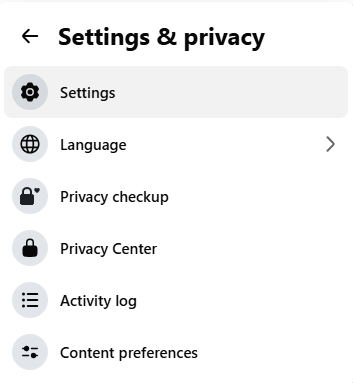
Click your profile picture in the top-right corner of Facebook. From the menu that appears, click "Settings & privacy".
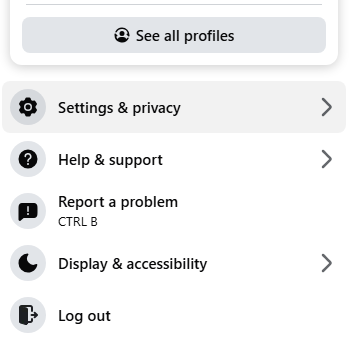
Next, click "Settings".
Step 2: Open Apps and Websites
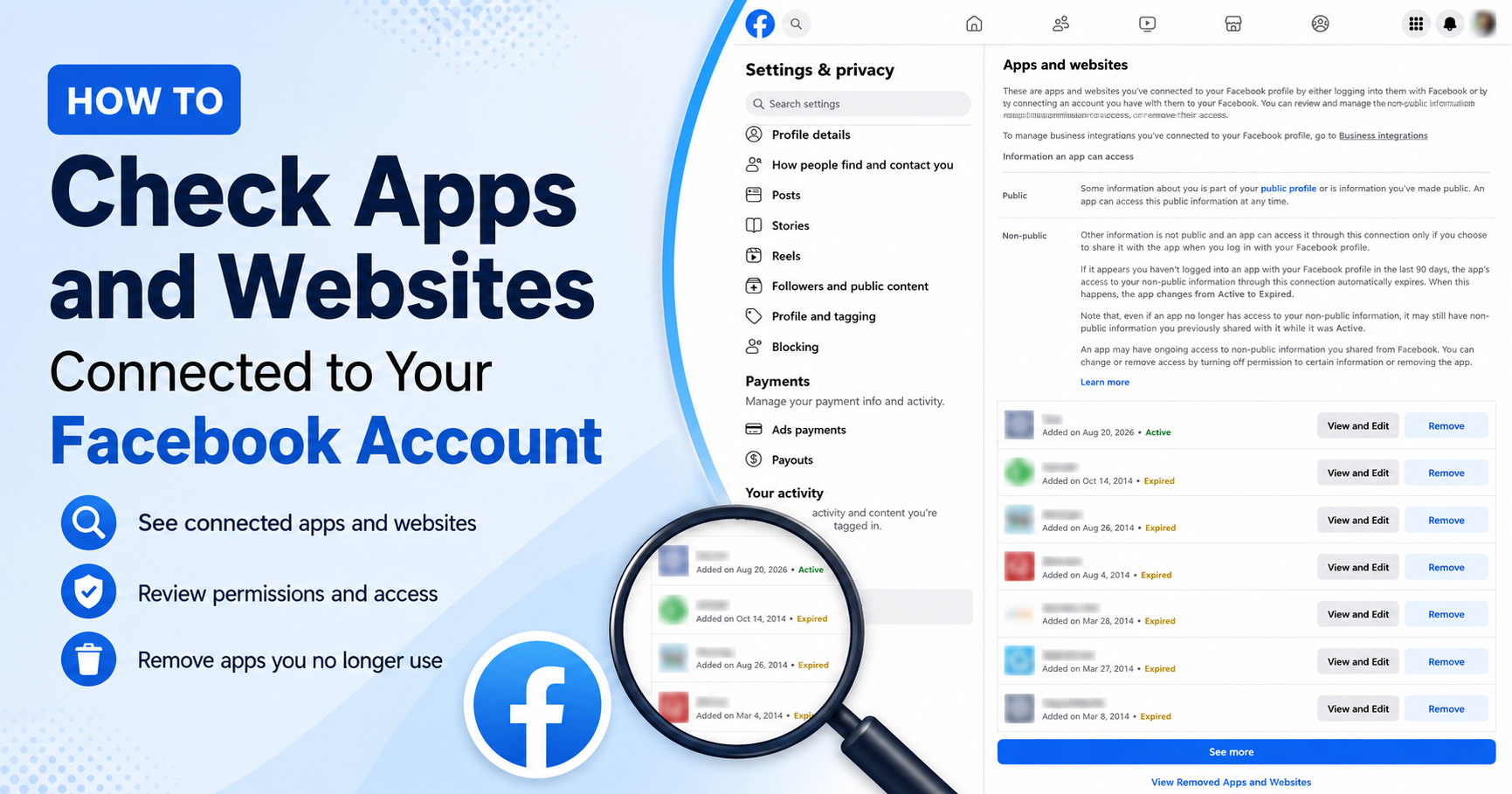
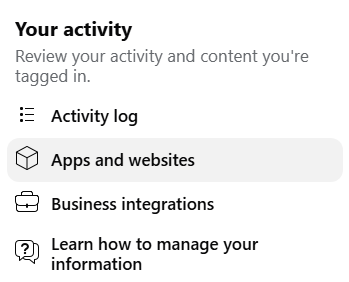
On the Settings page, look at the menu on the left. Scroll down to the "Your activity" section and click "Apps and websites".
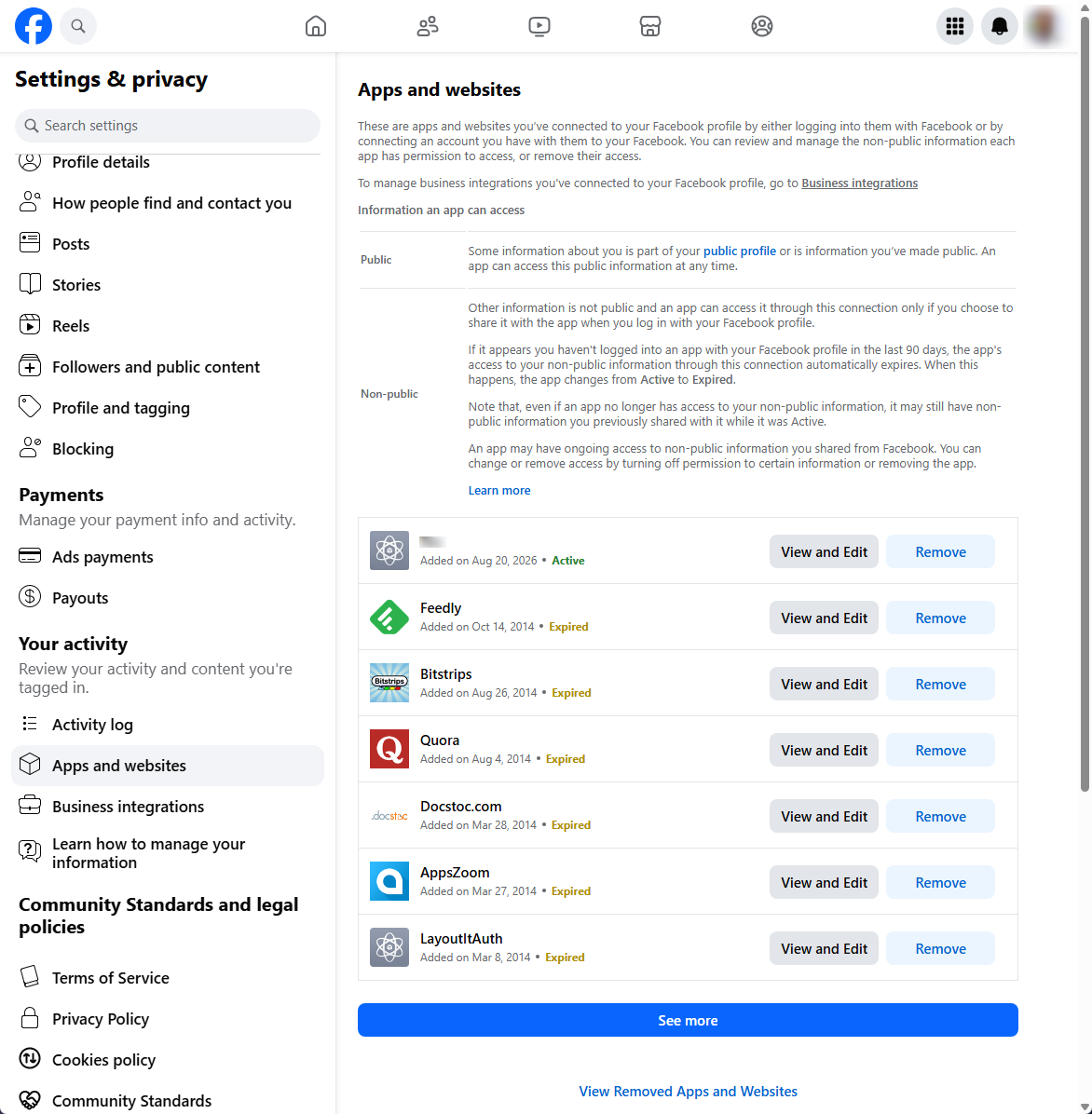
This opens the page where Facebook lists the apps and websites you've connected to your Facebook profile.
Step 3: Review Your Connected Apps and Websites
Take a look through the list. You might find a few apps or websites you completely forgot about.
For each connection, Facebook may show the name of the app or website, when it was added, and whether its status is Active or Expired. You'll also see "View and Edit" and "Remove" options.
If you have a long list, click "See more" to view additional apps and websites.
What Do Active and Expired Mean?
You may notice that Facebook labels some connections Active and others Expired.
An Active connection can access the non-public information you've chosen to share with it through your Facebook connection.
An Expired connection no longer has access to your non-public information through that connection.
Note: According to the information shown in Facebook's Apps and websites settings, if you haven't logged in to an app with your Facebook profile within the last 90 days, the app's access to your non-public information through the connection automatically expires. Its status then changes from Active to Expired.
However, an expired connection doesn't necessarily mean that the app has deleted information you previously shared with it. The app may still retain information it received while the connection was active.
Step 4: Check What an App Can Access
To take a closer look at a connection, click "View and Edit" next to the app or website.
Facebook will show details about the connection, including the information you've shared with the app. Depending on the app and its permissions, you may also be able to remove access to certain information.
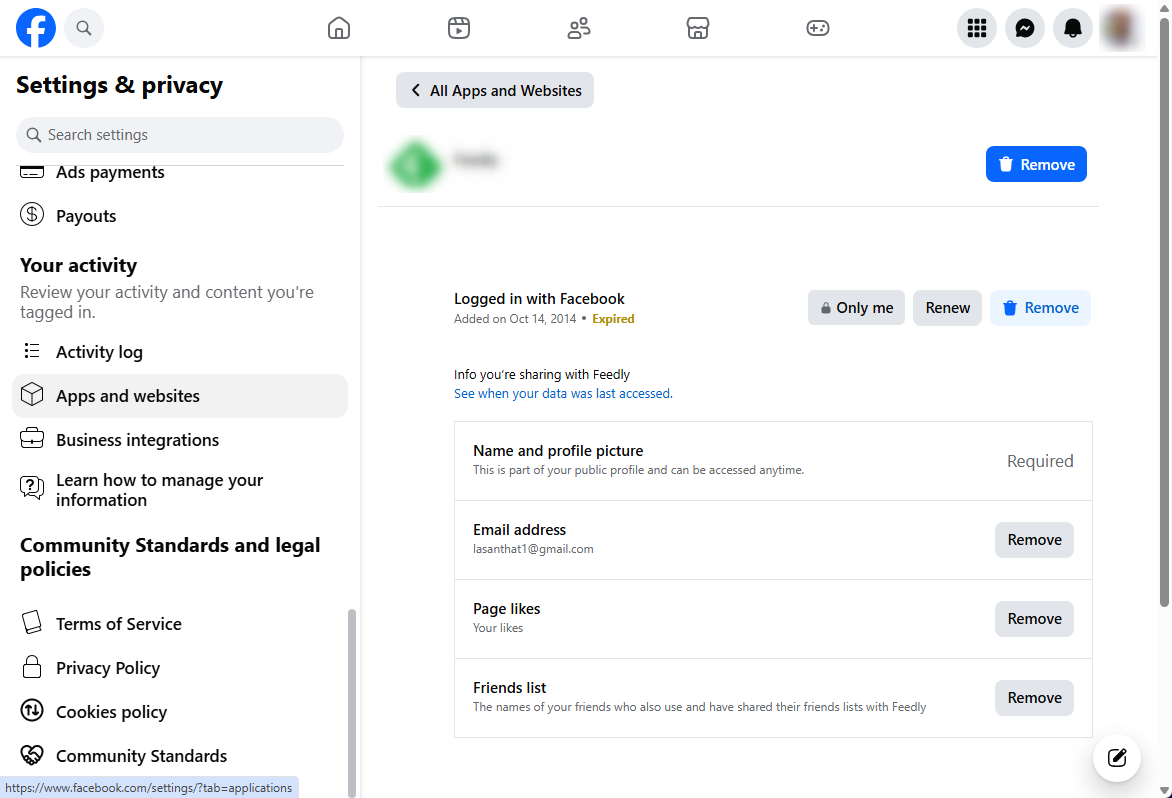
Review the available information and permissions. If you still use the service and are comfortable with the connection, you don't need to make any changes.
Step 5: Remove an App or Website You No Longer Need
If you no longer use an app or website, you can disconnect it from your Facebook account by clicking "Remove".
Facebook will display a confirmation window explaining what will happen when the connection is removed. Read the information carefully before clicking "Remove" again to confirm.
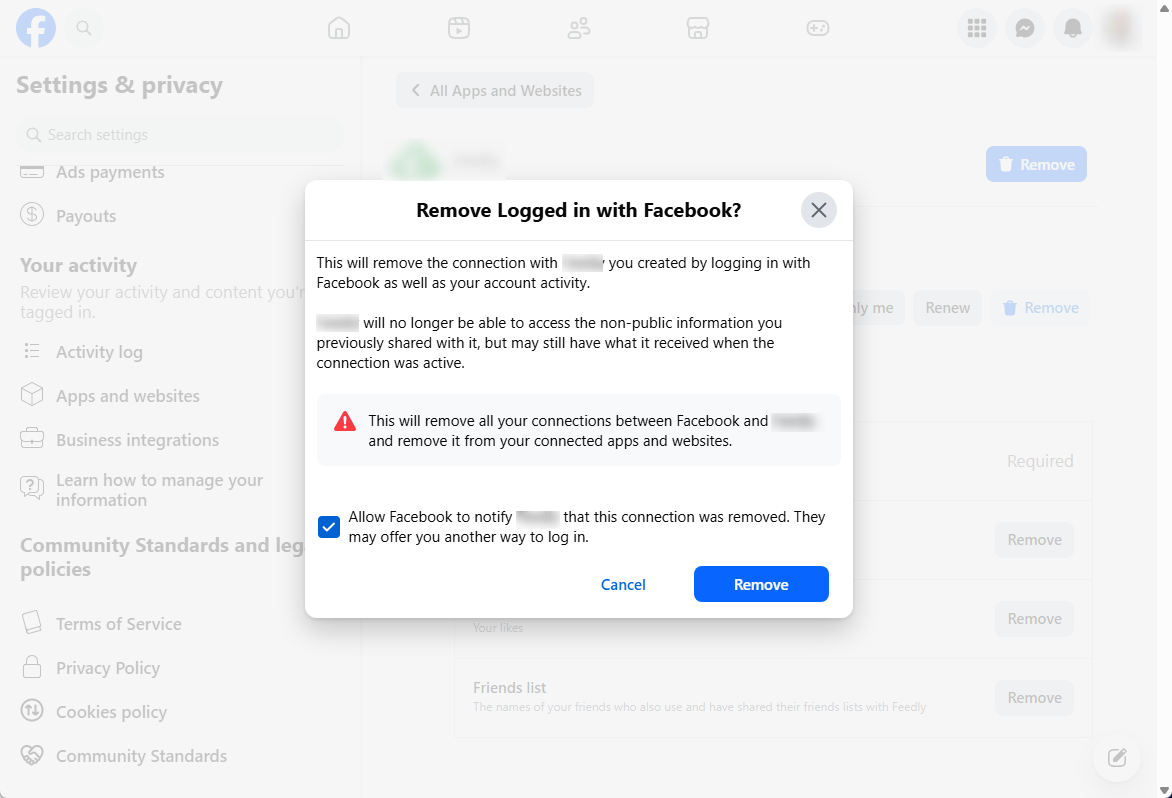
Facebook may also give you the option to notify the app or website that the connection was removed.
Keep in mind that removing a connection from Facebook doesn't necessarily delete information the third-party service received while the connection was active. If you want previously shared information deleted, you may need to contact the service or manage your data directly through its website or app.
What If You Don't Recognize an App?
If you see an app or website you don't recognize, it may simply be a service you connected to Facebook a long time ago.
Use "View and Edit" to review the connection. If you still don't recognize the service or no longer need it, you can remove it.
If you notice other Facebook account activity you don't recognize, it's also a good idea to review your account's security and login settings.
How to Check Apps and Websites You've Already Removed
Facebook also lets you review apps and websites that were previously removed from your account.
On the "Apps and websites" page, scroll below your current connections and click "View Removed Apps and Websites".
This can be useful if you want to check whether you previously disconnected a particular app or website.
Note: Facebook occasionally changes its menus and settings. The exact wording or location of these options may vary slightly depending on your device, account, region, or Facebook interface version.