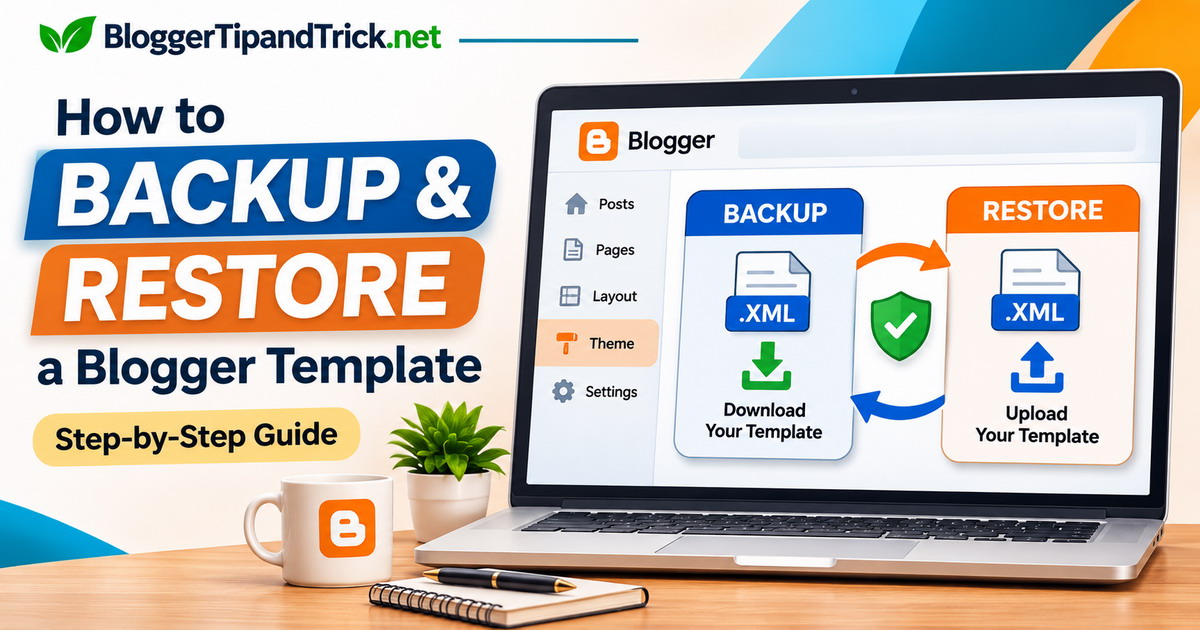
Planning to edit your Blogger template or try a new design? Download a backup first. A change that seems minor can affect your menu, sidebar, or mobile layout, and having the previous template saved makes it much easier to recover.
Here's the quick way to do it: in your Blogger dashboard, go to Theme, click the arrow beside Customize, and select Backup followed by Download. To use a saved template later, return to that menu, choose Restore, and upload the theme file.
Below, you'll find the full steps with screenshots, plus a few things worth checking before you replace a live theme. Blogger uses the word theme in its dashboard, but you'll also see it called a template. Both refer to your blog's design here.
Dashboard screenshots were captured from the English desktop interface on November 3, 2026. They show a demonstration blog, with personal details cropped or hidden. Red outlines highlight the controls being discussed.
What does a Blogger template backup actually save?
When you back up a Blogger theme, you download an XML file containing the template's structure, styling, markup, and any script references included in its code. It's a saved version of the design, not a backup of everything on your blog.
There are a few differences worth knowing:
- Theme backup: saves the template so you can upload that version again later.
- Blog content backup: is a separate process for posts, pages, and comments. Blogger's help documentation describes using Google Takeout to obtain this content.
- Images and other external files: a theme may link to images, fonts, or scripts hosted elsewhere. Those files aren't automatically included just because their URLs appear in the XML.
There's one more catch: Blogger's Backup window warns that some gadgets may not be backed up. If you've added custom HTML, menu links, or advertising code through gadgets, save those details separately. Don't rely on the XML file to restore every gadget exactly as it was.
Before you start
Make sure you're signed in to the Google account that manages the blog. If you have more than one Blogger site, double-check which one is selected.
Before replacing a theme, it's also worth taking screenshots of your homepage, mobile layout, and Layout page. Keep copies of any important HTML/JavaScript gadget code and custom links. If you're installing a theme from another developer, read its instructions and, when possible, try it on a test blog first.
How to back up your Blogger template
Step 1: Open your Blogger dashboard
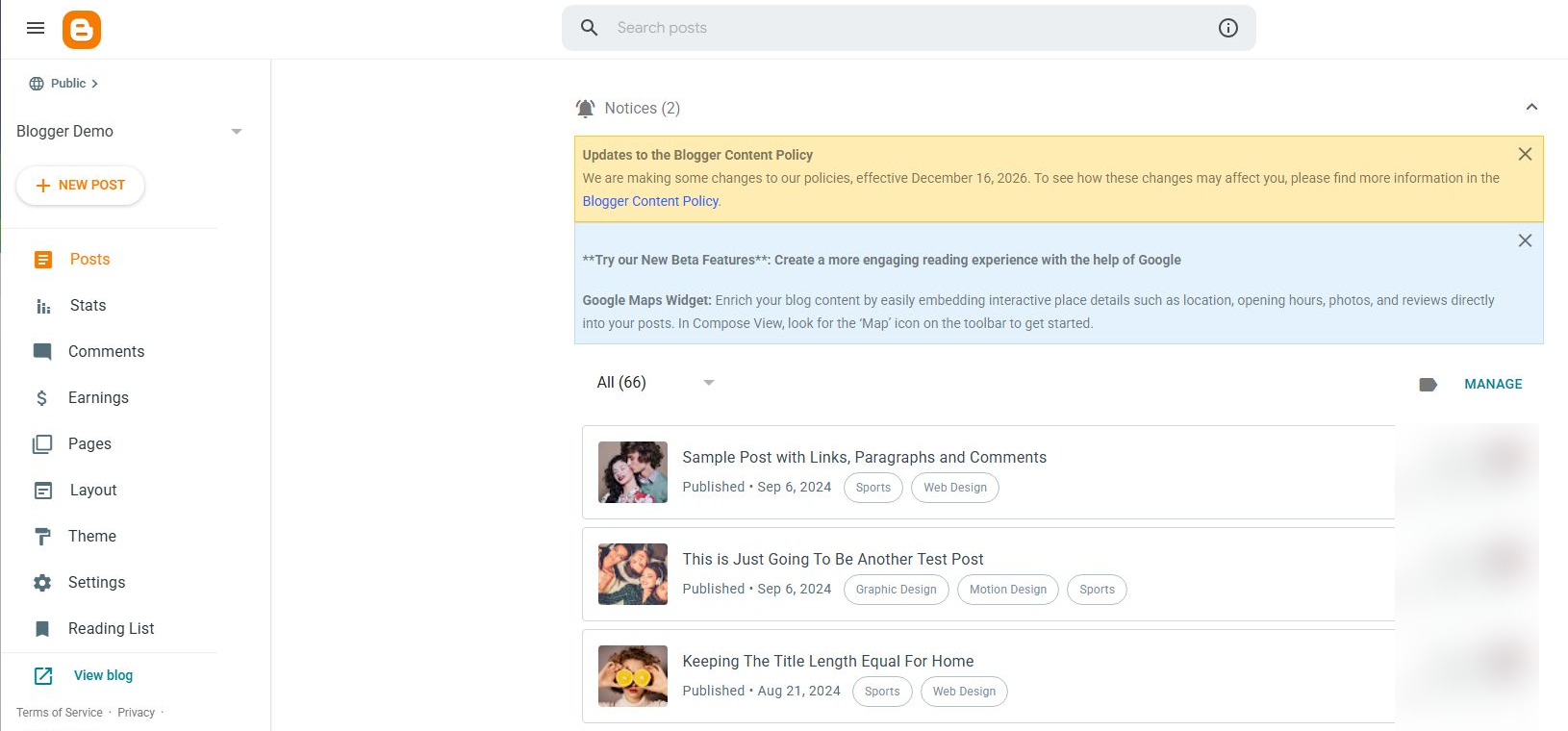
Go to Blogger and sign in. Use the blog selector near the top of the left sidebar to choose the site you want to back up.
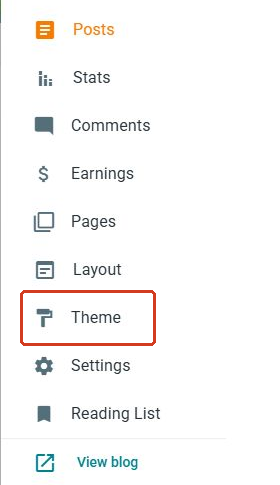
Step 2: Open Theme
Click Theme in the left sidebar. You'll see your active design under My Theme, with other available themes farther down the page.
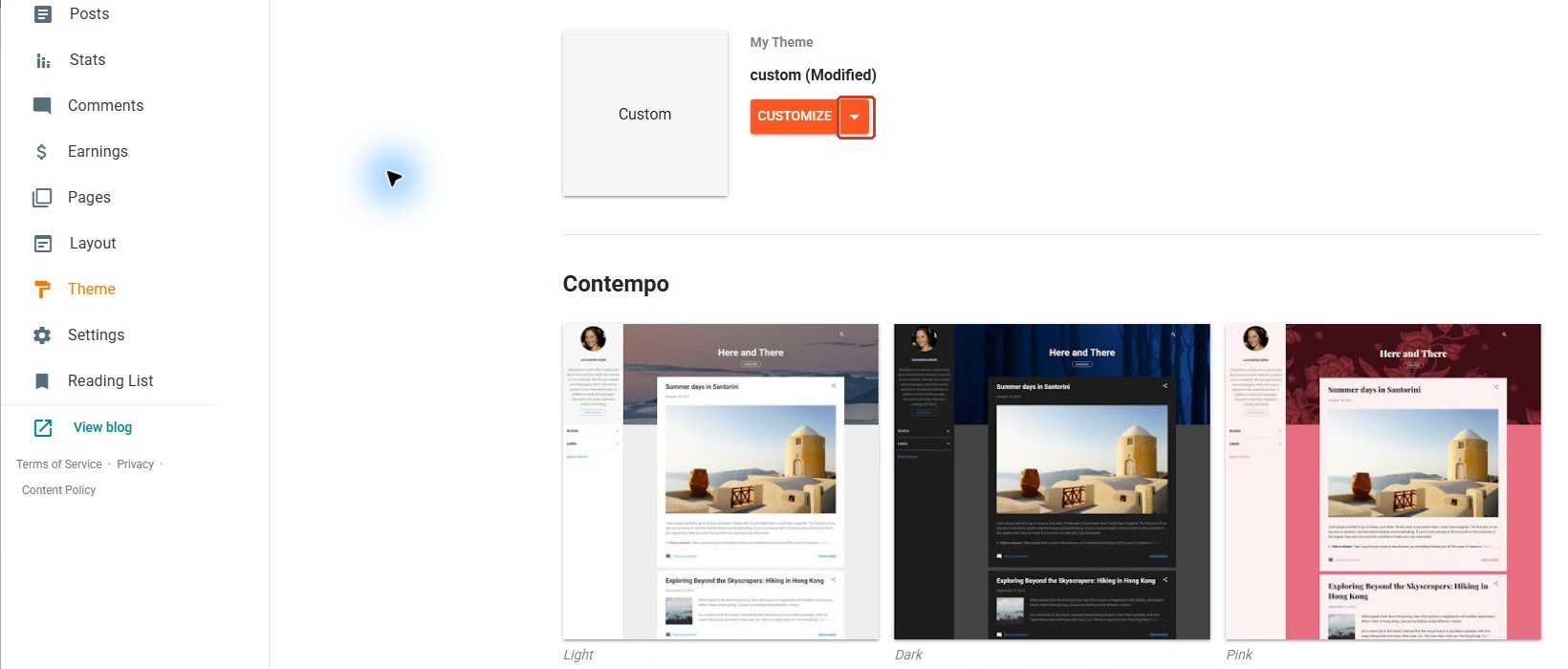
Step 3: Click the arrow beside Customize
Under My Theme, look for the Customize button. Click the small down arrow beside it, not the Customize button itself. The arrow opens the theme's More actions menu.
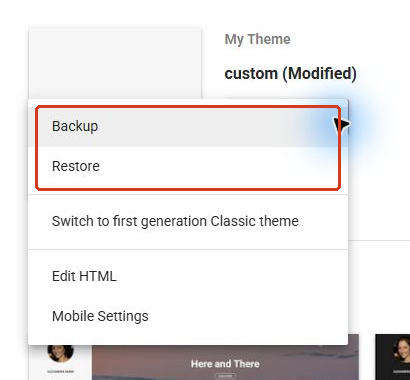
Step 4: Choose Backup
Select Backup from the menu. You may see other options, such as Restore or Edit HTML, but you don't need those to download a copy of the current theme.
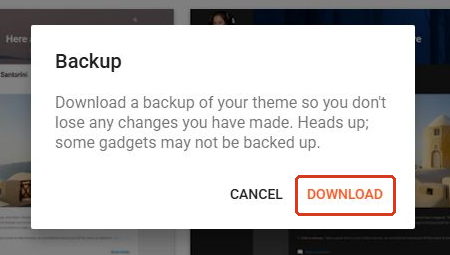
Step 5: Download and save the XML file
A small Backup window will appear. Click Download. Depending on your browser settings, the XML file may go straight to your Downloads folder or you may be asked where to save it.
Check your browser's download list to make sure the file was saved. Give it a name you'll recognize, such as my-blog-theme-2026-11-03.xml. Keep the .xml extension, and consider storing a second copy in a separate safe location.
Screenshot note: the image shows the actual Backup window. A theme file wasn't downloaded while preparing the screenshots, so no completed download or filename is shown.
What to check before restoring a Blogger template
Restoring a template changes the design of your live blog. Once you choose a file and submit it, don't count on getting another preview or confirmation screen.
- Back up your current theme. Even if you're restoring an older version, save what's live now before replacing it.
- Check the file type. Use a Blogger theme XML file. A WordPress theme, blog content export, or ZIP archive isn't the file to upload here. If your template came in a ZIP, extract it and locate the correct XML file using the developer's instructions.
- Save gadget details. Copy important gadget code and record where the gadgets appear in Layout.
- Check the backup date. An older template won't include changes you made after saving it.
- Allow time to inspect the result. It's better to make a theme change when you can check the blog immediately afterward.
How to restore a Blogger template from a backup
Step 1: Open the Restore option
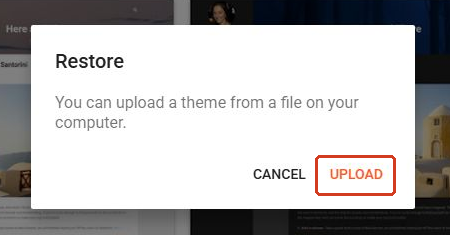
In the Blogger dashboard for the correct blog, open Theme. Click the arrow beside Customize and choose Restore. A window will appear with an Upload button.
Step 2: Select your XML file
Click Upload to open your computer's file picker. Find the XML file you saved earlier. On Windows, select it and click Open to submit it to Blogger.
If you change your mind, cancel before submitting a file. Selecting and opening the file can start the restore process, so make sure you've chosen the right backup.

Testing note: the Restore window and file picker were inspected for this article, but no XML file was submitted. The screenshots do not demonstrate a completed restore, error message, or post-restore gadget behavior.
Step 3: Check your blog after the restore
Wait for Blogger to process the file and read any message it shows. If Blogger reports an error, don't assume the new theme was applied.
Once the restore succeeds, click View blog. Check more than just the homepage:
- Open a blog post and a static page to see whether their layouts look right.
- Test your navigation menu and important links.
- Check the design on both desktop and mobile.
- Compare your header, sidebar, footer, fonts, and colors with your saved screenshots.
- Review gadgets, advertising placements, and any custom integrations.
If something has gone badly wrong, you can try restoring the backup you made immediately before the change. Just remember that uploading the previous XML doesn't guarantee every gadget or externally hosted file will return to its earlier state.
Will restoring a template affect your gadgets?
It can. Blogger calls many of its sidebar and layout components gadgets, although you'll often see them called widgets in template tutorials. Their placement depends partly on the sections defined in the theme.
When you switch to a different template, some gadgets may move or need to be configured again. That's why it's useful to save your HTML/JavaScript gadget content and take a screenshot of Layout before uploading a theme.
The same applies to customizations. Code saved inside an older template reflects that older version. If you added something after making the backup, you'll need to add it again if you restore the earlier file. External scripts and service settings also need to be checked separately.
Troubleshooting Blogger template backup and restore problems
Can't find Backup or Restore?
Make sure you're on the Theme page and clicking the arrow beside Customize. The arrow in the blog selector opens a different menu. Also check that you're signed in to the correct account. Available options can vary with the theme and dashboard language.
Downloaded the theme, but can't find the file?
Open your browser's downloads list and look for the most recent XML file. In Chrome, you can use Ctrl + J on Windows to view downloads. Check whether the download finished and where the browser saved it. If it failed, try the Backup button again. There's no need to turn off browser security protections.
Have a ZIP file instead of an XML file?
Some template developers distribute their themes in ZIP packages. Extract the package and follow the included instructions to find the Blogger template XML. Don't upload the whole ZIP through Theme > Restore.
Also, not every XML file is a theme. A Blogger content export is different, and changing a filename's extension to .xml won't make it a valid template.
Blogger won't accept the template?
Read the error message carefully and keep a copy of it. If you're working with a modified theme, try an untouched copy of a known working backup rather than editing your only saved file. If the XML came from a template provider, ask the developer to review the error and confirm that the file is intended for Blogger.
The theme uploaded, but the layout looks wrong?
First, check that you're viewing the correct blog and uploaded the version you intended. Refresh the public page and compare it with your earlier screenshots. Then open Layout to inspect gadget positions.
If images or scripts are missing, check whether their external URLs still work. Restoring the theme XML cannot recover files that are no longer available at their original locations.
The desktop version looks fine, but mobile doesn't?
Open the blog on a real phone and check the template developer's setup instructions. Some themes expose Mobile Settings in Blogger, but the appropriate setting depends on how the template was built. Save a working backup before experimenting with those options.
Frequently asked questions
Does a Blogger template backup include posts and comments?
No. A theme backup saves the design, not your posts, pages, or comments. Back up blog content separately.
Will restoring a template delete my posts?
Restoring a theme is meant to change your blog's design, not delete its posts. Your content should remain, although the new template may display it differently. It's still wise to maintain a separate content backup.
Can I undo a template change?
Yes, if you have a previous theme file, you can upload it through Restore. Check your gadgets and custom settings afterward, since this isn't a full rollback of your Blogger account.
How often should I back up my template?
Make a backup before editing theme code, installing another template, or making a major design change. When you're happy with the updated design, save that version too. Keep at least one earlier backup you know was working.
Can I restore a theme from another Blogger blog?
You can use a compatible Blogger theme file, but check its license and any blog-specific links, gadget settings, or external resources first. Testing it on a separate blog is safer. Uploading the theme won't copy posts from the other blog.
Do I need to use Edit HTML to create a backup?
No. The easier and intended method is Theme > More actions > Backup > Download. Edit HTML is for changing template code, not downloading a backup.
Keep a backup you can actually identify
A backup is most useful when you know which version it contains. Save your Blogger template before making changes, include the date in the filename, and keep important gadget notes alongside it. That gives you a much better starting point if a future edit or theme installation doesn't work out.
Official Blogger references
- Back up or import your blog (Blogger Help): explains theme downloads and the separate blog content backup process.
- Use themes to change how your blog looks (Blogger Help): covers the Theme page and design customization.