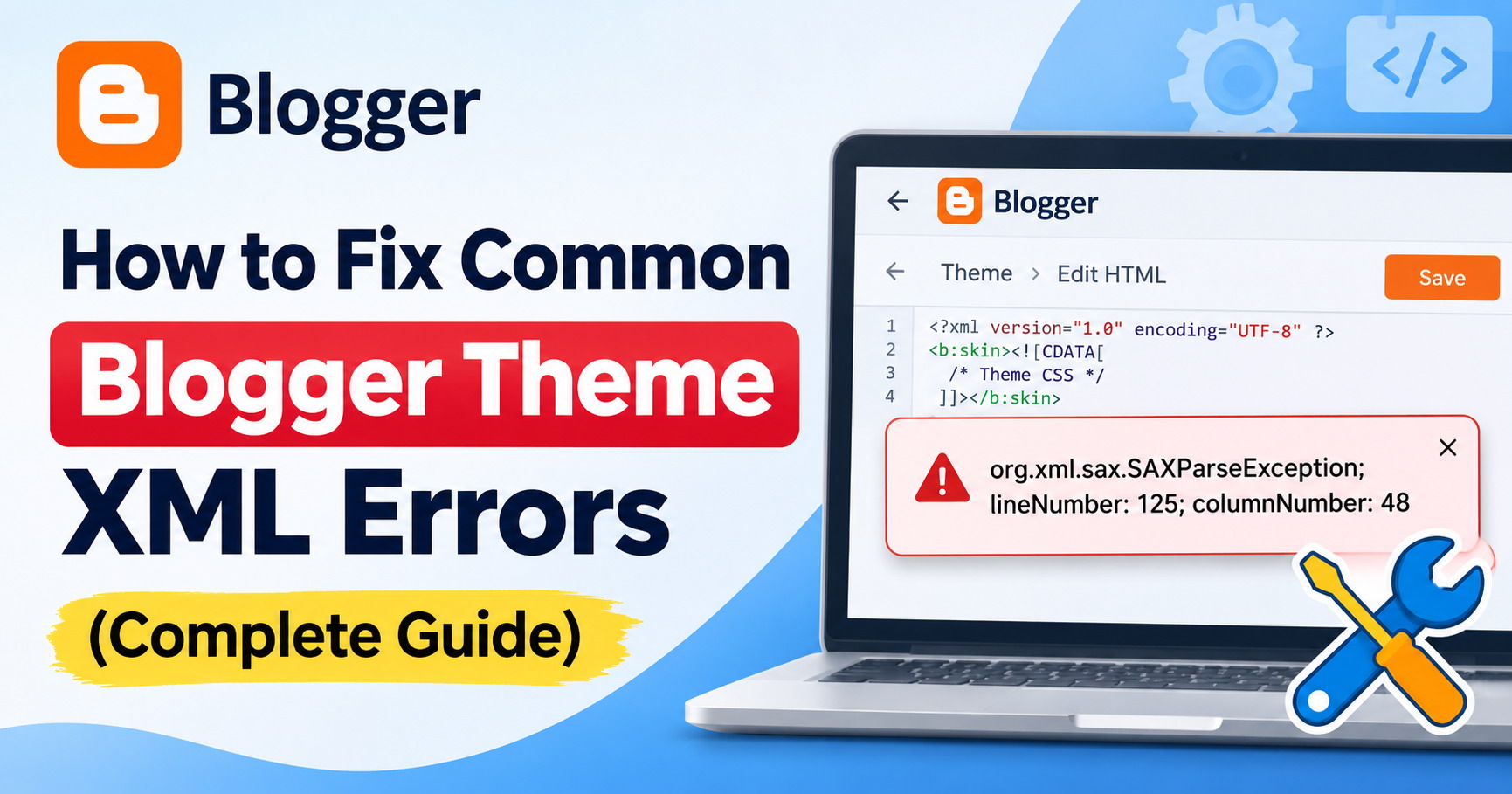
You make a small change to your Blogger theme, click Save, and suddenly the editor shows an XML error. Sometimes it points to a line number. Other times, the message is so vague that it's hard to know where to start.
You might see something like:
org.xml.sax.SAXParseException; lineNumber: 125; columnNumber: 48Or perhaps Blogger tells you that an element must be terminated, a widget ID is invalid, or a reference to an entity is missing a semicolon.
Because Blogger themes use XML, even a missing quotation mark or an unescaped ampersand can stop a template from saving. You don't need to become an XML expert to fix many of these problems, but it helps to know what each message is telling you.
Start with the exact error message and the code you changed most recently. That usually narrows the search faster than editing unrelated parts of the template.
Below are common Blogger theme XML errors, examples of broken and corrected markup, and practical checks to try when a theme won't save or restore.
Why Do Blogger Theme XML Errors Occur?
Blogger templates are not ordinary HTML files. They use XML syntax along with Blogger-specific tags, attributes, and expressions.
This means the code must follow stricter rules than regular HTML.
For example, a browser might accept this HTML without any noticeable problem:
<br>However, when writing XML markup, an empty element must be properly closed:
<br/>The same rule applies to other empty HTML elements, including <img>, <meta>, <link>, and <input>.
Blogger also uses special elements such as:
<b:section>
<b:widget>
<b:if>
<b:loop>
<b:includable>
These elements control different parts of your blog's layout and functionality.
If you accidentally remove a closing tag, insert an invalid character, or break the structure of one of these elements, Blogger may reject the template.
Sometimes the error appears immediately after you make a change. Other times, it happens when you try to install a downloaded theme.
Before changing more code, save a copy of the theme you're working with.
Before You Start: Back Up Your Blogger Theme
Before making changes to your Blogger template, download a backup of the current theme.
Even if your blog is already displaying an error, having a copy of the existing code can save you considerable trouble later.
Here's how to back up your Blogger theme:
- Sign in to your Blogger dashboard.
- Select the blog you want to edit.
- Click Theme in the left sidebar.
- Click the dropdown arrow next to the Customize button.
- Select Backup.
- Click Download to save your theme.
Blogger will download an XML file containing your theme.
Store the downloaded XML file somewhere you can find it again, ideally with the date in its filename.
If something goes wrong while editing, you can use the backup to restore the previous version of your template.
Important: A theme backup is not the same as a complete blog backup. It does not serve as a separate backup of all your posts and comments.
With a backup in place, you can investigate the error without risking your only working copy.
Quick check: If the error mentions an entity, inspect ampersands first. If it mentions an end-tag, check nesting and closing tags. If it mentions a widget or section ID, inspect Blogger layout markup. Always work from the file version that produced the error, since formatting changes can shift line numbers.
1. Fix "The Reference to Entity Must End With the ';' Delimiter"
This is one of the most common XML errors when adding external resources to a Blogger template.
You may see an error similar to:
The reference to entity "display" must end
with the ';' delimiter.
This often happens when you paste a URL containing an ampersand (&) into an XML attribute.
Why This Error Happens
Consider the following Google Fonts URL:
<link href='https://fonts.googleapis.com/css2?family=Roboto:wght@400;700&display=swap' rel='stylesheet'/>The URL is fine when used as a URL. The problem is the literal ampersand in the XML attribute: it must be escaped in the theme source.
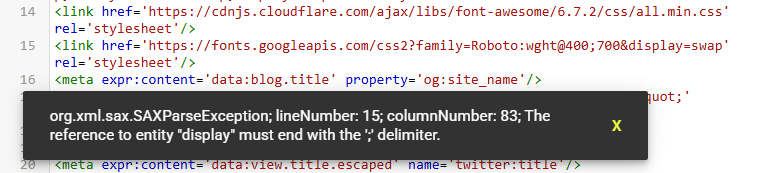
In XML, the ampersand has a special meaning. It is used to introduce an entity reference.
When Blogger encounters &display, it tries to interpret it as an XML entity rather than part of the URL.
How to Fix It
Replace the ampersand with its XML-safe equivalent:
&The corrected code looks like this:
<link href='https://fonts.googleapis.com/css2?family=Roboto:wght@400;700&display=swap' rel='stylesheet'/>After replacing the literal ampersand in the XML source, save the template again.
If Blogger still reports an entity error, check the rest of the affected attribute for other unescaped ampersands.
Where Else Can This Error Occur?
You may encounter the same problem when adding:
- Google Fonts URLs
- External JavaScript files
- Tracking scripts
- Affiliate links
- URLs containing multiple query parameters
For example, this XML attribute is incorrect:
<a href='https://example.com/?page=1&sort=new'>Link</a>The corrected version is:
<a href='https://example.com/?page=1&sort=new'>Link</a>Remember: This replacement is necessary when an ampersand appears as literal text in XML markup, such as an attribute value. Do not blindly replace every ampersand throughout your template, especially inside existing entities or CDATA sections.
2. Fix "The Element Type Must Be Terminated by the Matching End-Tag"
Another common Blogger XML error involves missing closing tags.
For example:
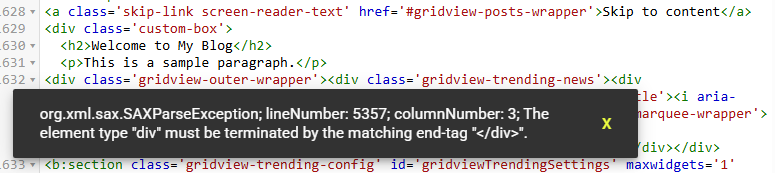
The element type "div" must be terminated
by the matching end-tag "</div>".
This message means the XML parser found an element that was not closed correctly.
Example of Incorrect Code
<div class='custom-box'>
  <h2>Welcome to My Blog</h2>
  <p>This is a sample paragraph.</p>
Notice that the opening <div> does not have a matching closing tag. It shows this error:
Correct Code
<div class='custom-box'>
  <h2>Welcome to My Blog</h2>
  <p>This is a sample paragraph.</p>
</div>
The missing </div> has been added.
How to Find Missing Closing Tags
If your Blogger template contains thousands of lines, locating an unclosed element can be difficult.
A code editor such as Visual Studio Code can help.
Open your template XML file in the editor and examine the section around the line number mentioned in the error.
Look for:
- Opening tags without matching closing tags
- Incorrectly nested elements
- Accidentally deleted tags
- Elements closed in the wrong order
For example, the following code is incorrectly nested:
<div>
  <span>Hello World</div>
</span>
The correct structure is:
<div>
  <span>Hello World</span>
</div>
Keep in mind that the line number reported by Blogger may point to where the parser noticed the problem, not necessarily where the mistake began.
If the code looks correct at the reported line, check the lines immediately above it.
3. Fix "The Element Type Must Be Followed by Either Attribute Specifications, '>' or '/>'"
This error usually appears when an opening tag contains invalid syntax.
For example:
Element type "meta" must be followed by
either attribute specifications, ">" or "/>".
It can happen when you accidentally remove a quotation mark, add an invalid character, or leave a tag incomplete.
Example of Incorrect Code
<meta name='description' content='My Blogger Website'/The closing angle bracket is missing. It shows this error message:
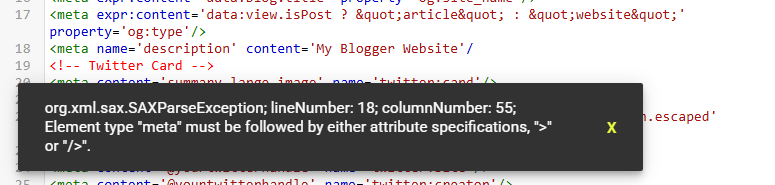
Correct Code
<meta name='description' content='My Blogger Website'/>Another common mistake involves quotation marks.
Incorrect:
<div class='header>Correct:
<div class='header'>XML attribute values must be enclosed in matching quotation marks.
When this error appears,
- Inspect the opening tag carefully.
- Check every quotation mark, equal sign, and angle bracket.
- A single missing character may be all that needs fixing.
4. Fix "The Entity Name Must Immediately Follow the '&' in the Entity Reference"
This error is closely related to the ampersand problem discussed earlier.
However, it can occur even when the ampersand is not part of a URL.
Consider this example:
<h2>Tips & Tricks</h2>Although this looks like ordinary HTML, the ampersand is not properly escaped for XML. When you try to save the theme, it gives this error:

Correct Code
<h2>Tips & Tricks</h2>The same issue can occur inside HTML attributes.
Incorrect:
<img src='image.jpg' alt='Tips & Tricks'/>Correct:
<img src='image.jpg' alt='Tips & Tricks'/>If you regularly edit Blogger templates, it is worth remembering a few common XML entities.
| Character | XML Entity |
|---|---|
| & | & |
| < | < |
| > | > |
| " | " |
| ' | ' |
Not every character needs escaping in every situation. For example, a greater-than sign is generally allowed in normal XML text, while an unescaped less-than sign is not.
The important thing is to use the appropriate entity whenever a character would otherwise interfere with XML syntax.
5. Fix "The Widget ID Is Invalid" or Duplicate Widget ID Errors
Blogger uses widgets to display elements such as blog posts, navigation menus, labels, and HTML gadgets.
Each widget has an ID that identifies it within the template.
For example:
<b:widget id='HTML1' type='HTML'/>Problems can occur if you manually copy widget code and accidentally create two widgets with the same ID.
Example of Incorrect Code
<b:widget id='HTML1' type='HTML'/>

<b:widget id='HTML1' type='HTML'/>
Both widgets use HTML1. You will see this error:

Blogger expects widget IDs to be unique.
How to Fix It
- First, check whether you accidentally duplicated an entire widget.
- If the second widget is unnecessary, remove the duplicate.
- If both widgets are needed, they must have valid, unique IDs.
For example:
<b:widget id='HTML1' type='HTML'/>

<b:widget id='HTML2' type='HTML'/>
These IDs illustrate the uniqueness rule. They are not a reason to rename existing gadgets indiscriminately.
Note: Do not casually rename widget IDs in an existing Blogger theme.
Widget IDs can be connected to stored gadget settings and layout data. Changing them may cause Blogger to treat a widget as a different gadget.
If you are working with an existing blog, it is usually safer to remove an unwanted duplicate or create a new widget through Blogger's Layout interface.
After making changes, check that the affected gadgets still display correctly.
6. Fix Blogger Section Errors
Blogger themes use <b:section> elements to define areas where widgets can appear.
A typical section looks like this:
<b:section id='sidebar' class='sidebar' showaddelement='yes'>
</b:section>
A section has its own Blogger-specific rules in addition to the XML syntax rules.
One common mistake is placing ordinary HTML elements directly inside a section.
Incorrect Example
<b:section id='sidebar' class='sidebar'>
  <div class='custom-message'>
    Welcome to my blog!
  </div>
</b:section>
A Blogger section is intended to contain widgets rather than arbitrary HTML elements.
Correct Approach
Place your custom HTML outside the section:
<div class='custom-message'>
  Welcome to my blog!
</div>

<b:section id='sidebar' class='sidebar'>
</b:section>
Alternatively, add the content through an HTML/JavaScript gadget in Blogger's Layout section.
Also, make sure every section has a unique ID.
Incorrect:
<b:section id='sidebar'/>
<b:section id='sidebar'/>
With duplicated sections IDs, you will see this error:

Correct:
<b:section id='sidebar'/>
<b:section id='footer'/>
If you are modifying a complicated Blogger template, be especially careful when moving sections or widgets.
An incorrectly placed section can cause errors even when the surrounding XML is otherwise well-formed.
7. Fix "The Content of Elements Must Consist of Well-Formed Character Data or Markup"
This error often appears when special characters are inserted into the template without proper escaping.
For example:
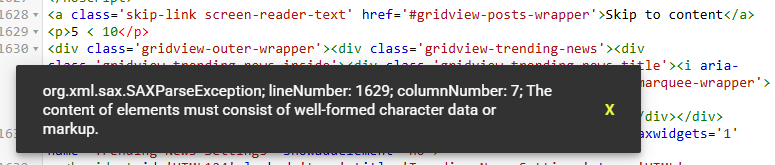
<p>5 < 10</p>The less-than symbol is interpreted as the beginning of an XML tag. So, you will see an error similar to this:
Correct Code
<p>5 < 10</p>Another example involves JavaScript.
Suppose you add this code directly inside a Blogger theme:
<script>
  if (count < 10 && enabled) {
    console.log('Enabled');
  }
</script>
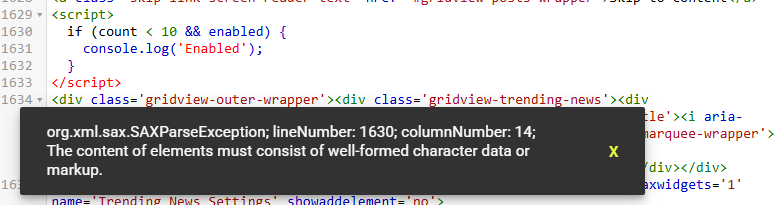
The JavaScript itself is valid, but the raw less-than and ampersand characters can cause problems when the template is parsed as XML. You will then see an error message similar to the following:
How to Fix JavaScript-Related XML Errors
One option is to wrap suitable inline JavaScript in a CDATA section:
<script type='text/javascript'>
//<![CDATA[
  if (count < 10 && enabled) {
    console.log('Enabled');
  }
//]]>
</script>
CDATA prevents the XML parser from treating characters such as < and & inside the CDATA block as markup. The // lines in this example are JavaScript comments; the CDATA delimiters themselves are what matter to the XML parser.
This is particularly useful when working with inline JavaScript containing comparison operators and ampersands.
CDATA fixes an XML parsing issue, not a JavaScript logic error. It also does not make an unsafe or incompatible third-party script suitable for your blog.
Make sure the JavaScript is valid, the script element is properly closed, and the code does not contain an unintended CDATA terminator.
If you are adding a third-party script, follow the provider's Blogger-compatible installation instructions whenever available.
8. Fix "Unable to Restore Theme" in Blogger
When restoring a theme, Blogger may show a general message instead of a line-specific XML error:
Unable to restore themeUnlike a detailed XML parsing error, this message may not tell you exactly what went wrong.
There are several possible causes.
The File Is Not a Blogger Theme
Blogger cannot directly install an ordinary HTML website template or a WordPress theme.
The file must contain a valid Blogger-compatible theme.
A WordPress theme ZIP file, for example, cannot be uploaded as a Blogger template.
The XML File Is Damaged
If the theme file was edited incorrectly, some essential code may be missing.
Try opening the file in a text editor and checking whether it contains a complete XML document.
You Selected the Wrong File
Some downloaded Blogger themes come inside ZIP archives.
Extract the ZIP file first and locate the actual Blogger theme XML file.
Also, make sure you are not confusing a Blogger theme backup with a backup of your blog posts and comments.
These are different types of files.
Try the Edit HTML Method
If the XML file appears valid but Blogger cannot restore it, you can try replacing the theme code manually.
- Open the XML file in a text editor.
- Copy the entire template code.
- Open your Blogger dashboard.
- Navigate to Theme > Edit HTML.
- Replace the existing template code with the new code.
- Click Save.
Warning: Back up your current theme before doing this. Replacing the template code can affect your existing layout and gadgets.
Also, this method will not fix invalid XML. If the file contains syntax errors, Blogger may reject the pasted code as well.
9. Fix Blogger Theme Not Saving Without a Clear Error
Not every Blogger theme problem produces a useful XML error message.
You may click Save and see no obvious result, receive a generic error, or find that the live blog still shows the old design. Those symptoms don't necessarily have the same cause.
Before changing large sections of code, try these basic checks.
Check Your Recent Changes
If saving stopped working right after you added a script, widget, or CSS snippet, begin with that change rather than rewriting the entire theme.
Temporarily remove the newly added code and try saving again.
If the template saves successfully, you have narrowed down the problem.
Try Another Browser
Occasionally, browser extensions or temporary browser issues can interfere with the Blogger editor.
Try opening Blogger in another browser or a private browsing window.
If the problem disappears, investigate your browser extensions and cached data.
Check for Invalid Widget Code
A damaged or incompatible widget can also cause theme-related problems.
If you recently edited a widget, review its opening and closing tags.
Avoid deleting entire widget sections unless you understand how they are connected to the theme.
Test With a Clean Theme
If you cannot identify the problem, create a separate test blog and try the theme there.
This can help you determine whether the issue is related to the template itself or the configuration of your existing blog.
Do not replace your live blog's theme with a default template just to experiment unless you have a reliable backup and understand the possible effects on your gadgets.
10. How to Find the Exact Line Causing a Blogger XML Error
When Blogger displays a SAXParseException, it often includes a line number and column number.
For example:
org.xml.sax.SAXParseException;
lineNumber: 245;
columnNumber: 36;
This information is useful because it tells you where the XML parser detected the problem.
In this example, the parser encountered an issue at line 245, column 36.
However, that does not always mean the actual mistake is located at that exact position.
A missing closing tag on line 220 might not cause an error until the parser reaches line 245.
A Simple Way to Investigate
Download your theme and open it in a code editor that displays line numbers.
Visual Studio Code is a good option, although any suitable XML editor will work.
Navigate to the reported line and inspect the surrounding code.
Pay attention to:
- Missing quotation marks
- Unescaped ampersands
- Unclosed HTML elements
- Incorrectly nested tags
- Incomplete Blogger expressions
- Invalid widget or section markup
If the reported line looks correct, examine the preceding lines.
It also helps to compare the current file with your last working backup.
If you only changed a small section of the template, comparing those changes is often faster than examining the entire file.
One thing worth remembering: line numbers can change when code is reformatted. Use the original file that produced the error when following the reported location.
11. How to Avoid Blogger XML Errors in the Future
Once you have fixed a broken Blogger template, a few simple habits can help prevent the same problem from happening again.
Make One Change at a Time
Avoid editing several unrelated parts of your theme before saving.
If you change the header, footer, navigation menu, and JavaScript code at the same time, identifying the source of an error becomes much harder.
Instead, make one change, save the template, and check the result.
Keep a Working Backup
Before making major changes, download a copy of the theme.
You can also keep several versions of your template on your computer.
For example:
blogger-theme-original.xml
blogger-theme-header-update.xml
blogger-theme-final.xml
This makes it easier to return to a working version if something breaks.
Use a Proper Code Editor
Editing a large Blogger template in a basic text editor can be inconvenient.
A code editor with syntax highlighting, automatic indentation, and tag matching can help you spot mistakes before uploading the file.
Be Careful With Third-Party Code
Not every HTML, CSS, or JavaScript snippet found online is ready to paste directly into a Blogger XML template.
A snippet that works perfectly on a regular HTML website may require adjustments before it can be used in Blogger.
Pay particular attention to ampersands, empty HTML elements, and inline JavaScript.
Test Major Changes Before Publishing
If you frequently customize your Blogger theme, consider maintaining a separate test blog.
You can experiment with new layouts, scripts, and widgets without affecting your live website.
Once everything works correctly, apply the tested changes to your main blog.
Frequently Asked Questions
Why does Blogger show an XML error when I save my theme?
Blogger uses XML-based templates, which require properly structured markup. Missing closing tags, invalid characters, malformed attributes, and incorrect Blogger-specific elements can cause the editor to reject your changes.
What is SAXParseException in Blogger?
SAXParseException reports a problem encountered while parsing XML. In a Blogger theme, it often points to malformed markup, such as an unclosed tag or an unescaped special character. The line and column identify where the parser detected the issue, which may be later than the actual mistake.
How do I fix an ampersand error in Blogger XML?
When an ampersand appears as literal text in XML markup, replace it with &. This is particularly important in URLs placed inside HTML attributes.
Can I use normal HTML code in a Blogger template?
Yes, but the markup must be compatible with Blogger's XML template structure. Some HTML snippets need adjustments, such as closing empty elements and escaping special characters.
Why can't I upload a downloaded Blogger template?
Check that you selected the actual Blogger theme XML file, not the ZIP archive or a WordPress theme. The XML might also be incomplete or incompatible with Blogger. A generic restore error alone cannot identify which cause applies.
Will fixing XML errors delete my blog posts?
Correcting a syntax error in your theme normally does not delete your published posts. However, replacing a theme or removing widgets can affect layout settings and gadget content. Always back up your theme before making significant changes.
Can I fix Blogger XML errors without coding knowledge?
Many simple errors can be fixed by following the message and correcting a missing tag, quotation mark, or special character. More complicated problems involving widgets and Blogger expressions may require some familiarity with XML.
What to Do If Your Blogger XML Error Persists
Blogger XML errors can look intimidating, especially when the error message contains technical terms such as SAXParseException or entity references.
Many of these errors come down to a single character or an element that wasn't closed properly.
A missing closing tag, an unescaped ampersand, or an incorrectly written attribute can prevent an otherwise working template from saving.
The best approach is to read the error carefully, check the reported line, and review your most recent changes before attempting a larger fix.
Keep a known-good XML backup before each significant change.
That gives you a reliable way back if a fix creates a different problem.
If you are still getting an XML error, copy the complete error message and examine the surrounding template code. The exact wording often provides the best clue about what needs to be corrected.