Blogger
How To Show Only The Title Of Posts For Searches, Archives And Labels
If you use this hack, when users will click on Archives, search or labels, they will see only the titles of the post, this will…
If you use this hack, when users will click on Archives, search or labels, they will see only the titles of the post, this will…
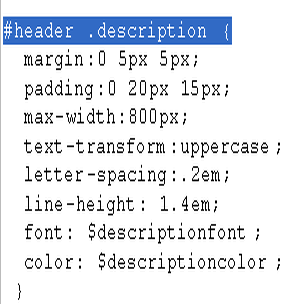
1.Log in to your dashboard--> layout- -> Edit HTML 2.Scroll down to where you see this : #Header .description Look at the picture below. 3.Copy…
1.Log in to your dashboard--> layout- -> Edit HTML 2.Scroll down to where you see this : #Header h1 Look at the picture below. 3.Copy…
1.Log in to your dashboard--> layout- -> Edit HTML 2.Scroll down to where you see like this code. <div id='sidebar-wrapper'> <b:section class='sidebar' id='sidebar' preferred='yes'><b:widget id='Feed2'…
1.Log in to your dashboard--> layout- -> Edit HTML 2.Scroll down to where you see like this code. <div id='main-wrapper'><b:section class='main' id='main' showaddelement='no'><b:widget id='Blog1' locked='true'…
1.Log in to your dashboard--> layout- -> Edit HTML 2.Click on "Expand Widget Templates" 3.Scroll down to where you see this : ]]></b:skin> 4.Add below…
1.Log in to your dashboard--> layout- -> Edit HTML 2.Click on "Expand Widget Templates" 3.Scroll down to where you see ]]> tag. 4.Now add below…
1.Login to your blogger dashboard--> layout- -> Edit HTML 2.Scroll down to where you see </head> tag . 3.Copy below code and paste it just…
1.Log in to your dashboard--> layout- -> Edit HTML 2.Click on "Expand Widget Templates" 3.Scroll down to where you see </head> tag. 4.Now add below…
1.Log in to your dashboard--> layout- -> Edit HTML 2.Click on "Expand Widget Templates" 3.Scroll down to where you see </head> tag. 4.Now add below…
1.Log in to your dashboard--> layout- -> Edit HTML 2.Click on "Expand Widget Templates" 3.Scroll down to where you see this: <data:post.body/> 4.Now replace above…
1.Log in to your dashboard--> layout- -> Edit HTML 2.Scroll down to where you see this: <b:section class='footer' id='footer'/> Look at the picture below. 3.Now…