Blogger
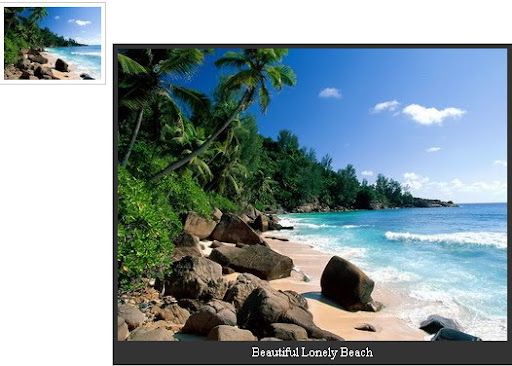
How To Add jQuery Image Preview With Caption to Blogger
1.Login to your blogger dashboard--> layout- -> Edit HTML 2.Scroll down to where you see </head> tag . 3.Copy below code and paste it just…
1.Login to your blogger dashboard--> layout- -> Edit HTML 2.Scroll down to where you see </head> tag . 3.Copy below code and paste it just…
1.Log in to your dashboard--> layout- -> Edit HTML 2.Click on "Expand Widget Templates" 3.Now find "Read More" text in your template. Note:It can be…
A rollover image is an image that changes to some other image when you or your customer rolls the mouse over it. To add a…
When you add a image to your site, your code will look like this : <img src="https://1.bp.blogspot.com/_-j7_-ccACuU/SuE7fKWtmEI/AAAAAAAAA98/c62rbwEGnyM/33473.jpg" alt="leaves" height="300" width="400" /> Result: Now add style="opacity:0.4;filter:alpha(opacity=40)"…
In this tutorial I am going to explain, how to create a simple slideshow using Mootools.If you like to add this slideshow to your website…
1.Login to your blogger dashboard--> layout- -> Edit HTML 2.Don't Click on "Expand Widget Templates" 3.Scroll down to where you see ]]></b:skin> tag: 4.Copy below…
1.Login to your blogger dashboard--> layout- -> Edit HTML 2.Don't click on "Expand Widget Templates" 3.Scroll down to where you see </head> tag: 4.Copy below…
Upload an image to blogger and you'll see some code like this: <a onblur="try {parent.deselectBloggerImageGracefully();} catch(e) {}" href="http://4.bp.blogspot.com/_-j7_-ccACuU/Sk8S8D3yrZI/AAAAAAAAAx4/EBamLqndlVQ/s1600-h/word33.png"><img style="cursor:pointer; cursor:hand;width: 400px; height: 90px;" src="https://4.bp.blogspot.com/_-j7_-ccACuU/Sk8S8D3yrZI/AAAAAAAAAx4/EBamLqndlVQ/s400/word33.png" border="0"…
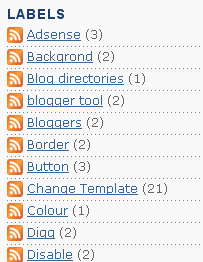
1.Log in to your dashboard--> layout- -> Edit HTML 2.Click on "Expand Widget Templates" 3.Scroll down to where you see this code: <b:loop values='data:labels' var='label'><li><b:if…
1.Log in to your dashboard--> layout- -> Edit HTML 2.Click on "Expand Widget Templates" 3.Scroll down to where you see this: <b:if cond='data:post.url'><a expr:href='data:post.url'><data:post.title/></a><b:else/><data:post.title/></b:if> 4.Now…
1.Login to your dashboard--> layout- ->Page Elements 2.Click on 'Add a Gadget' on the sidebar. 3.Select 'HTML/Javascript' and add the code given below and click…
When you add an image into your blog,it has a link(anchor link). When you click on the image, you will be directed on a page…