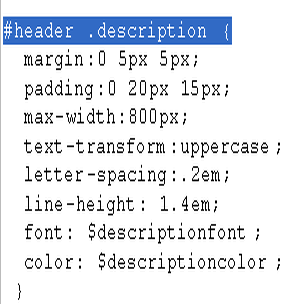
1.Log in to your dashboard--> layout- -> Edit HTML 2.Click on "Expand Widget Templates" 3.Scroll down to where you see this: <b:if cond='data:post.url'><a expr:href='data:post.url'><data:post.title/></a><b:else/><data:post.title/></b:if> 4.Now…
1.Log in to your blogger dashboard--> layout- -> Edit HTML 2.Scroll down to where you see like this code: a:link {color:$linkcolor;text-decoration:none;}a:visited {color:$visitedlinkcolor;text-decoration:none;}a:hover {color:$titlecolor;text-decoration:underline; 3.Now replace…
1.Log in to your dashboard--> layout- -> Edit HTML 2.Click on "Expand Widget Templates" 3.Scroll down to where you see this: <iframe allowtransparency='true' class='blogger-iframe-colorize' frameborder='0'…
1.Login to your dashboard--> layout- ->Page Elements 2.Click on 'Add a Gadget' on the sidebar. 3.Select 'HTML/Javascript' and add the code given below and click…
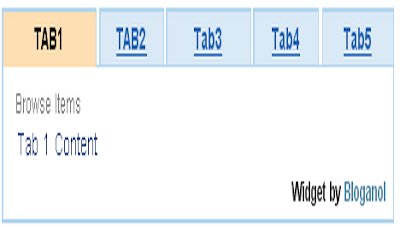
I found this nice tip in www.bloganol.com . 1.Login to your dashboard--> layout- ->Page Elements 2.Click on 'Add a Gadget' on the sidebar. 3.Select 'HTML/Javascript'…
1.Login to your dashboard--> layout- ->Page Elements 2.Click on 'Add a Gadget' on the sidebar. 3.Select 'HTML/Javascript' and add the code given below and click…
1.Login to your dashboard--> layout- ->Page Elements 2.Click on 'Add a Gadget' on the sidebar. 3.Select 'HTML/Javascript' and add the code given below and click…
1.Login to your dashboard--> layout- ->Page Elements 2.Click on 'Add a Gadget' on the sidebar. 3.Select 'HTML/Javascript' and add the code given below and click…
1.Log in to your dashboard--> layout- -> Edit HTML 2.Scroll down to where you see like this code. <div id='sidebar-wrapper'> <b:section class='sidebar' id='sidebar' preferred='yes'><b:widget id='Feed2'…