Blogger
How To Add Auto ‘Read More’ Feature to blogger
1.Log in to your dashboard--> layout- -> Edit HTML 2.Click on "Expand Widget Templates" 3.Scroll down to where you see this: <data:post.body/> 4.Now replace above…
1.Log in to your dashboard--> layout- -> Edit HTML 2.Click on "Expand Widget Templates" 3.Scroll down to where you see this: <data:post.body/> 4.Now replace above…
1.Log in to your dashboard--> layout- -> Edit HTML 2.Scroll down to where you see this: <b:section class='footer' id='footer'/> Look at the picture below. 3.Now…
You can change maximum number of Posts When Click on Label. For example if you want to set maximum number of posts to 20 ,follow the…
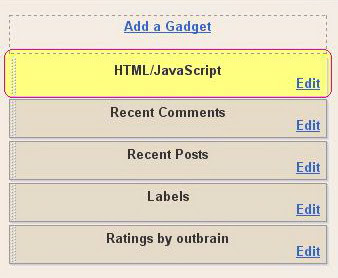
1.Log in to your dashboard--> layout- ->Page Elements 2.Click on 'Add a Gadget' on the sidebar. 3.Select 'HTML/Javascript' and add the code given below and…
1.Log in to your dashboard--> layout- ->Page Elements 2.Click on 'Add a Gadget' on the sidebar. 3.Select 'HTML/Javascript' and add the code given below and…
1.Log in to your dashboard--> layout- ->Page Elements 2.Click on 'Add a Gadget' on the sidebar. 3.Select 'HTML/Javascript' and add the code given below and…
Scroll to top button is very useful for bloggers if their have long blogs.To Add "scroll to top" button to your blog ,follow the steps…
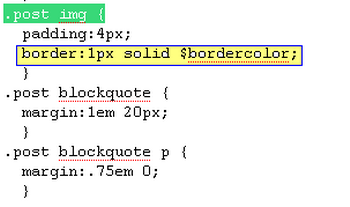
1.Log in to your dashboard--> layout- -> Edit HTML 2.Click on "Expand Widget Templates" 3.Scroll down to where you see this: .post img { 4.Now…
1.Log in to your dashboard--> layout- -> Edit HTML 2.Scroll down to where you see this: </head> 3.Now copy below code and paste it before…
1.Log in to your dashboard--> layout- ->Page Elements 2.Click on Add a Gadget on the sidebar. select the type of gadget you need and Save…
1.Log in to your dashboard--> layout- ->Page Elements 2.Click on Add a Gadget on the sidebar. select the type of gadget you need and Save…
1.Log in to your dashboard--> layout- ->Page Elements 2.Click on Add a Gadget on the sidebar. select the type of gadget you need and Save…