Blogger
How to Post HTML,CSS,JavaScript,… Codes As Plain Text In Blogger
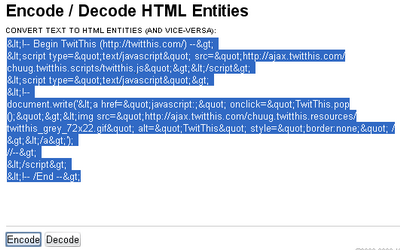
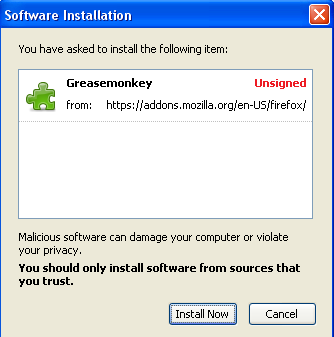
1.First install Greasemonkey script for your Firefox browser. 2.Now click here to install 'Blogger - HTML encode on post edit' to blogger. This adds a…
1.First install Greasemonkey script for your Firefox browser. 2.Now click here to install 'Blogger - HTML encode on post edit' to blogger. This adds a…
1.Login to your dashboard--> layout- -> Edit HTML 2.Scroll down to where you see </head> tag. 3.Now copy below code and paste it just before…
Upload an image to blogger and you'll see some code like this: <a onblur="try {parent.deselectBloggerImageGracefully();} catch(e) {}" href="http://4.bp.blogspot.com/_-j7_-ccACuU/Sk8S8D3yrZI/AAAAAAAAAx4/EBamLqndlVQ/s1600-h/word33.png"><img style="cursor:pointer; cursor:hand;width: 400px; height: 90px;" src="https://4.bp.blogspot.com/_-j7_-ccACuU/Sk8S8D3yrZI/AAAAAAAAAx4/EBamLqndlVQ/s400/word33.png" border="0"…
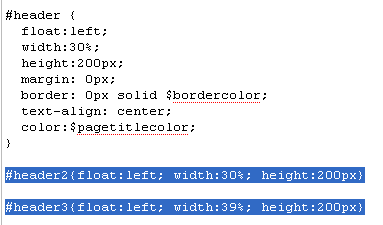
1.Log in to your dashboard--> layout- -> Edit HTML 2.Don't click on "Expand Widget Templates" 3.Scroll down to where you see like this code: #header…
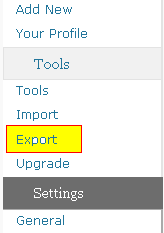
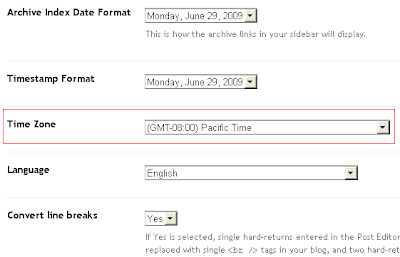
1.Login to your WordPress account and go to the Dashboard for the blog that you'd like to transfer to Blogger. 2.Click on the Tools tab-->Export…
1.Log in to your dashboard--> layout- -> Edit HTML 2.Don't click on "Expand Widget Templates" 3.Scroll down to where you see like this code: #header…
How to add the Google Translate Mini-Flags Widgets to blogger: 1.Login to your blogger dashboard-->Layout > Page Elements 2.Click on 'Add a Gadget' on the…
1.Login to blogger dashboard-->Layout > Page Elements 2.Click on 'Add a Gadget'. 3.Select 'HTML/Javascript' and add the code given below and click save. <iframe scrolling="no"…
1.Log in to your dashboard--> layout- -> Edit HTML 2.Scroll down to where you see </head> tag. 3.Now copy below code and paste it just…
1.Log in to your dashboard--> layout- -> Edit HTML 2.Click on "Expand Widget Templates" 3.Scroll down to where you see this: <b:includable id='feedLinksBody' var='links'> <div…
1.Log in to your dashboard--> layout- -> Edit HTML 2.Click on "Expand Widget Templates" 3.Scroll down to where you see this: <p><data:post.body/></p> 4.Now copy below…
1.Log in to your dashboard--> layout- -> Edit HTML 2.Scroll down to where you see this: ]]></b:skin> 3.Now add below code just above ]]></b:skin> tag.…